Robokassa is an aggregation of payment systems. With one contract you will be able to accept payments from your customers using a large amount of payment systems. Please be advised that Robokassa provides a contract only with a person that has an account in one of the banks in Russia.
Robokassa — is a service which helps Clients (Merchants/online stores, service providers) receive payments from Users (buyers) made through:
- Bank cards, in any electronic currency;
- Systems online banking of leading Banks in Russia;
- ATMs or payment terminals.
Robokassa Payment Features
One payment method; After placing the order the customer is redirected to the Robokassa website, where they can to choose the appropriate way of completing the payment process. If payment fails (Robokassa service returns the customer to your website with an error), customer's shopping cart will be refilled. If the payment succeeds, an invoice is created. If this extension is not enough for you and you want some additional features, check out our ET Payment Robokassa Advanced extension.
Robokassa Payment Configurations Steps
Head to Payment Method sections, click on "New" and search for Robokassa , then click Select
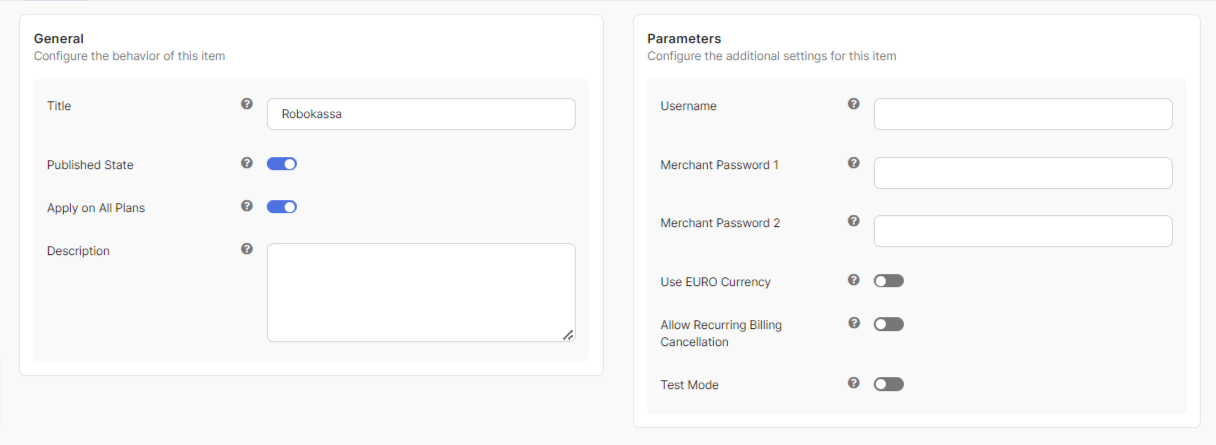
You will be prompted with few details that required for you to fill them in. For better clarification, see Robokassa Payment method Instance Screen sections below.
- Username: In this section, you will need to provide the Shop name that you have obtained from Robokassa.
- Merchants Password 1: In this section, you will need to provide the Merchants Password 1 that you have obtained from Robokassa shop.
- Merchants Password 2: In this section, you will need to provide the Merchants Password 2 that you have obtained from Robokassa shop.
Test Mode: This option determines if the payment gateway should be processed in Test mode. Test mode is a testing environment simulates a behavior of a payment method.

Setting Up Robokassa Shop
- Login into Merchant Interface at https://auth.robokassa.ru/partner/Login.aspx
- After a successful login, click on Add New option.
Fill In all the required details and create the shop.


Setting Up Technical Perferences Shop

- Shop Identifier: Fill this detail in the Username field of your Robokassa app instance.
- Password #1: Fill this detail in the Merchants Password 1 field of your Robokassa app instance.
- Password #2: Fill this detail in the Merchants Password 2 field of your Robokassa app instance.
Result URL: In the URL field, enter the following URL to which the payment gateway should copy the transaction relay responses. This URL must start with
http://orhttps://.https://yoursite.com/index.php?option=com_payplans&view=payment&task=notify- Method of sending data to Result Url: In this section, you will need to select the post option.
Sucess URL: In the URL field, enter the following URL to which the payment gateway should copy the transaction relay responses. This URL must start with
http://orhttps://.https://yoursite.com/index.php?option=com_payplans&view=payment&task=complete- Method of sending data to Result Url: In this section, you will nwwd to select the post option.
Sucess URL: In the URL field, enter the following URL to which the payment gateway should copy the transaction relay responses. This URL must start with
http://orhttps://.https://yoursite.com/index.php?option=com_payplans&view=payment&task=complete&action=error- Method of sending data to Result Url: In this section, you will nwwd to select the post option.
Setting Up Technical Perferences Shop

- Password #1: Fill this detail in the Merchants Password 1 field of your Robokassa app instance if you are using .
- Password #2: Fill this detail in the Merchants Password 2 field of your Robokassa app instance.