This documentation provides instructions on how to set up LinkedIn autoposting, which automates blog post sharing into LinkedIn.
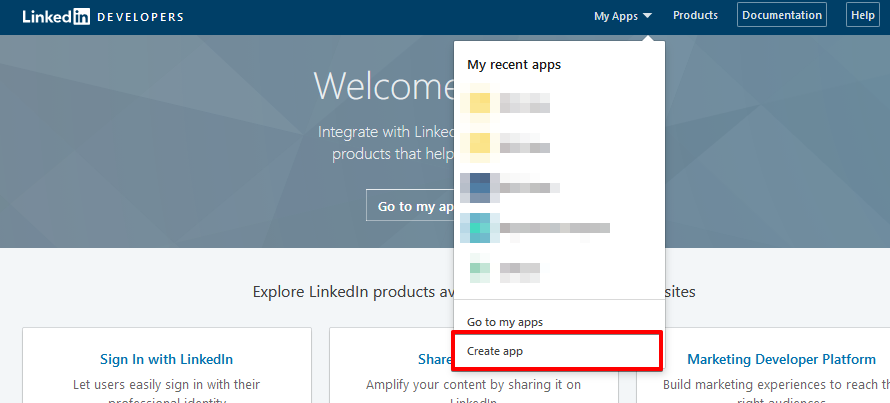
Login to the LinkedIn developer site at https://www.linkedin.com/developers/ then click on the Create App link under the My Apps dropdown on the top menu header bar.
On the app creation page, fill in the required details. Under the products section, you may select Marketing Developer Platform if you plan to autopost to your LinkedIn companies. Click on the Create App button when ready.
Marketing Developer Platform - This product has to be approved by LinkedIn on your app in order to get permission to autopost to company pages. More details can be found in the Autopost to Company Pages section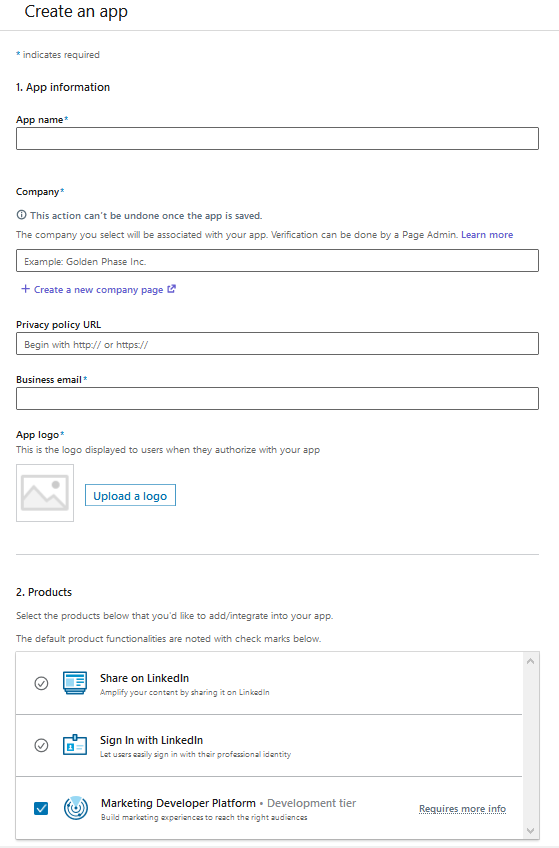
After the LinkedIn app is created, you will be redirected to the app settings page. In this page, you will see that the selected company is not yet fully associated with the app. Click on the verify button and follow LinkedIn's instructions to verify the company on the app.

Head back to the app settings page and click on the Auth tab.
Click on the pencil icon under LinkedIn's OAuth 2.0 settings section to add new redirect urls. Here, you have to paste all the Oauth Redirect URIs from EasyBlog, which is located at
EasyBlog > Auto Posting > LinkedIn.
Copy the Client ID and Client Secret from LinkedIn app's auth page and paste it into the API Key and Secret Key fields in EasyBlog's LinkedIn autoposting configuration. Then, save your LinkedIn autopost settings.

Click on the Sign in with LinkedIn button to sign in with your LinkedIn account and at the same time provide LinkedIn the necessary permissions for autoposting.


Autoposting to company pages
If you do not currently have the Marketing Developer Platform product your LinkedIn app, proceed to the Product tab in the app.
Click on Add more products and add Marketing Developer Platform product into your app.
LinkedIn will then send you an email regarding the product. Click on the link in the email to proceed.

Fill in the necessary details on the following page.
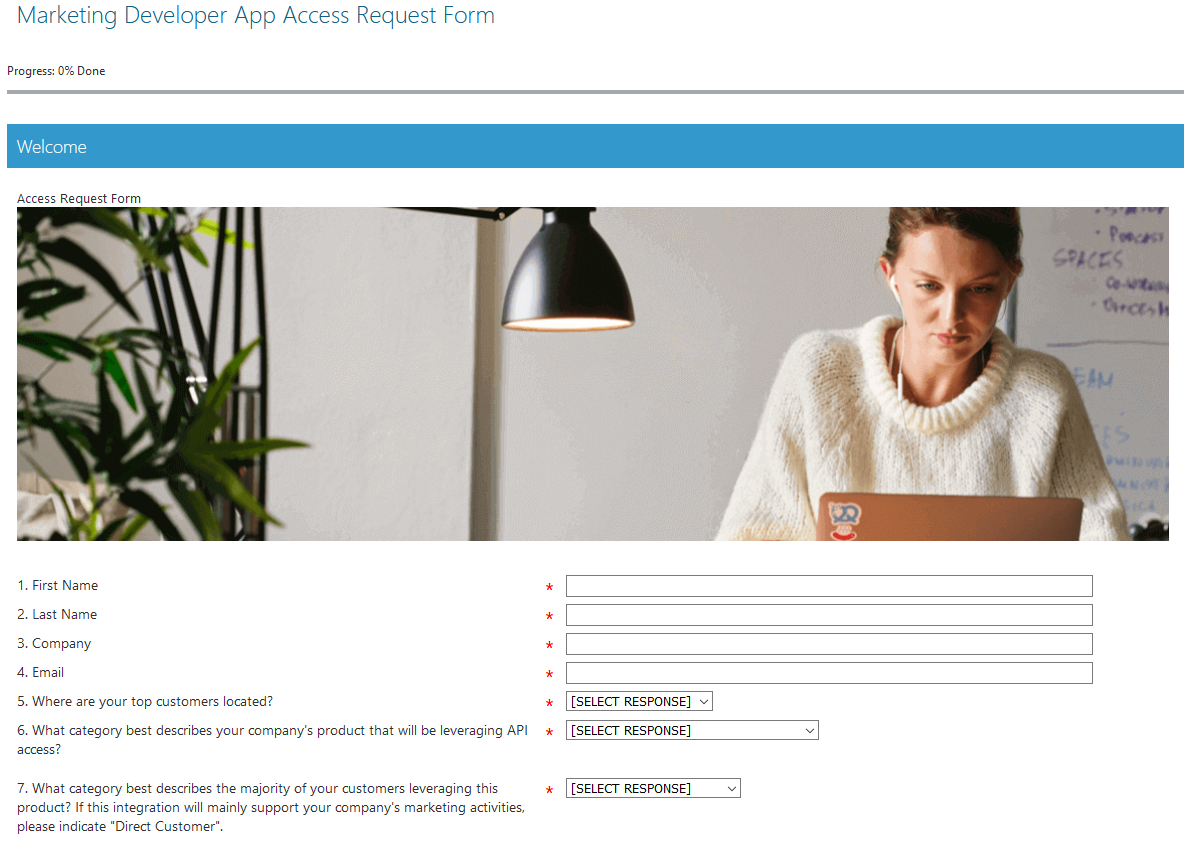

6 - Marketing Automation
7 - Direct Customers
8 - Community Management
9 - We would like to integrate our blog component with LinkedIn so that our authors can publish content to our LinkedIn Company page from our blog component. Our content will be presented on both our blog page and our LinkedIn Company page.
11 - N/A (Direct Customer)
12 - N/A (my use case does not manage or report on ad spend)
13 - Facebook, Twitter
For 13, if you autopost to Facebook and Twitter, fill in the details as above. If you do not autopost any blogs posts to both of them, fill in N/A.14 - Share on LinkedIn, Sign In with LinkedIn, Marketing Developer Platform.
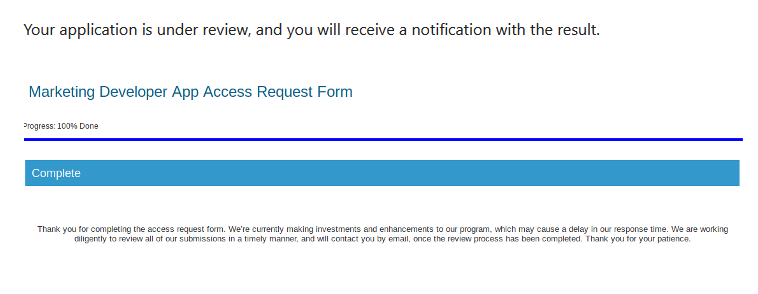
After filling up the form, click on Next, then Submit. You should see the page below. Once your application is approved, you will see the list of companies in EasyBlog's LinkedIn autoposting configuration page when you sign in with LinkedIn.